

Reviewed by:
Matas Kibildis

Head of Growth @ aiclicks.io
Last updated:
Expert Verified


Free AI visibility audit
Remember the API we said was coming next?
It's finally live now. 🎉
No more logging in every morning to copy numbers into a report, exporting a CSV to reformat by hand, or rebuilding the same view in another tool.
The API gives you read-only access to everything the dashboard runs on: brand visibility, mentions, citations, the prompts you track, and the fan-out queries LLMs actually run to answer you. Pull it into a warehouse, a BI tool, or your own script, and work with it however you want.
It's on the Business and Enterprise plans, and setup takes about two minutes. Here's how to turn it on, then five things worth building first.
What the API gives you
Eight read endpoints, built around one idea: a domain, the prompts you track for it, and how AI engines respond.
The API is read-only and built for export. Eight endpoints, all GET, all under https://api.aiclicks.io/api/v1/. Here's the full set and what each one is for.
Endpoint | What it returns | Use it for |
/validate | Key status, team, scope, rate limit | Confirming a key works and what it can reach |
/domains | Your tracked domains and their IDs | The domain_id every other call needs |
/prompts | The prompts you track for a domain | Auditing or exporting your prompt list |
/fanout-queries | The real searches LLMs ran to answer your prompts | Finding what to publish for AI search |
/mentions-time-series | Daily count of responses that named your brand | Tracking raw exposure |
/visibility-time-series | Daily share of responses that named you (%) | Tracking your hit rate |
/citations-time-series | Daily count of responses that cited your site | Tracking high-value pickups |
/citability-time-series | Daily share of responses that cited you (%) | Tracking citation rate |
No write endpoints, no webhooks. It reads your data out cleanly so you can take it elsewhere.
How to set up the AIclicks API
Step 1: Check you have access
The API is on the Business plan and Enterprise. Each key is scoped to a team, and that team needs developer access switched on. On Starter or Pro, you'll need to upgrade first.
Step 2: Create a key
In the app, open Settings → Developers and click Create API Key. Copy the key (it starts with ak_live_) and store it somewhere safe. You won't see it in full again.
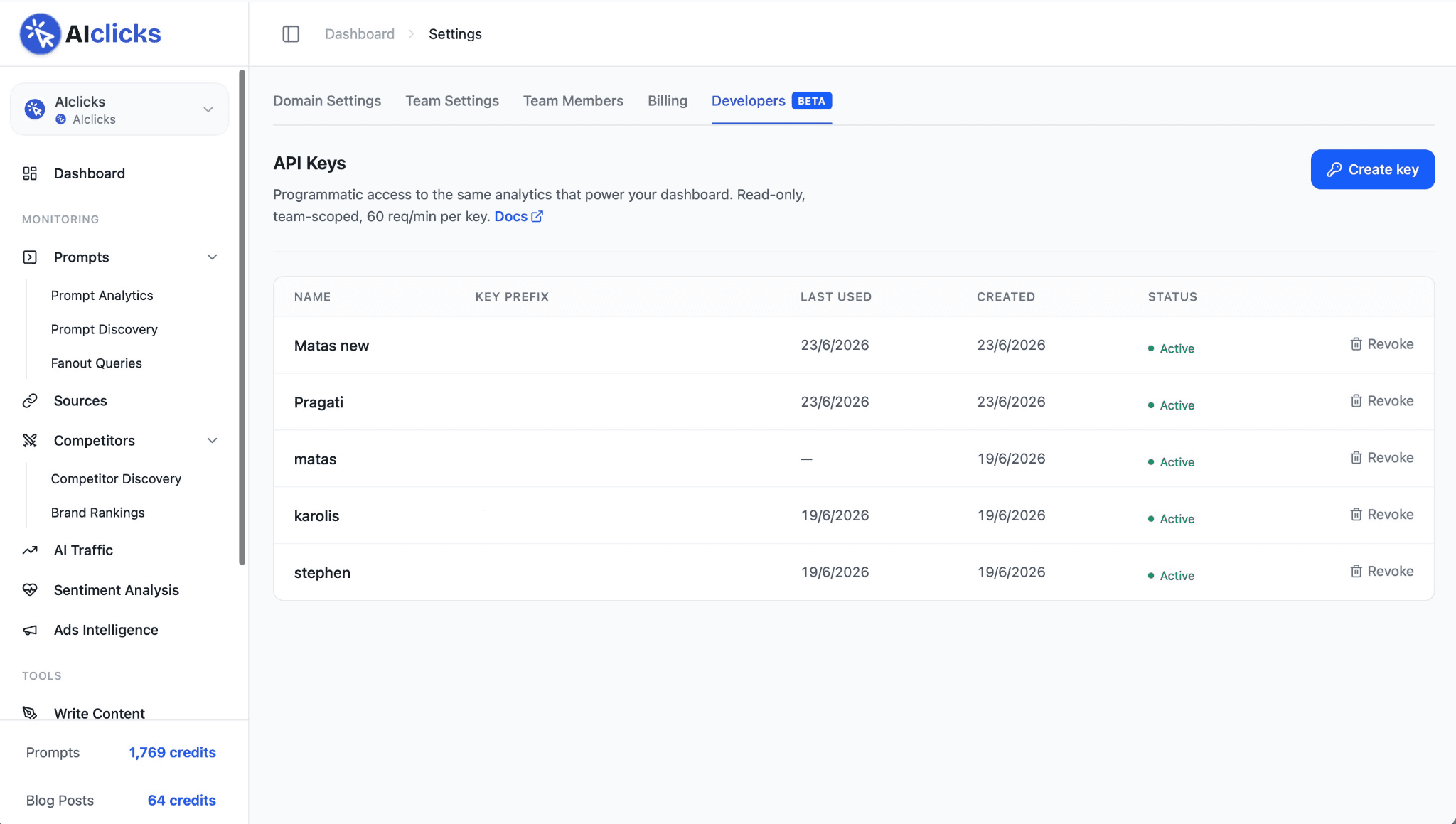
Step 3: Validate it before you build anything
A call to GET /api/v1/validate confirms the key is live and shows which teams and domains it can reach. Run it first whenever something downstream returns a 401 or 403.
One call confirms the key works and shows exactly what it can reach:
curl https://api.aiclicks.io/v1/validate \
-H "Authorization: Bearer YOUR_API_KEY"
You get back your teams, the domains the key is allowed to touch, and your rate limit:
{
"valid": true,
"key_type": "api_key",
"teams": [{ "name": "AIclicks", "developer_access": true, "domains_count": 3 }],
"allowed_domains": [
{ "id": "10df2f96-...", "name": "AIclicks", "website": "https://aiclicks.io/" }
],
"rate_limit": { "limit_per_minute": 60, "remaining": 59 }
}
If developer_access reads false, the key is valid but API access isn't on for the team yet. That's the first thing to check when a call comes back empty.
Step 4: Grab your domain_id
Hit GET /api/v1/domains returns every domain the key can see, each with an id. You pass that domain_id to every data endpoint.
List your domains and copy the id you want:
curl https://api.aiclicks.io/v1/domains \
-H "Authorization: Bearer YOUR_API_KEY"
Step 5: Pull your data
Use the API Reference to find the endpoint you need. This returns daily visibility for last 90 days:
curl "https://api.aiclicks.io/v1/domains/DOMAIN_ID/visibility?days=90" \
-H "Authorization: Bearer YOUR_API_KEY"
Every response comes back as JSON with a data field and a generated_at timestamp. Pagination, date windows, and the rest of the endpoints are in the API reference.
Validate, find your domain, pull data. You're capped at 60 requests per minute, which covers reporting and daily syncs comfortably. Space out heavy jobs so you don't hit the ceiling.
Connect the AIclicks API to Claude and just ask
In just a few steps, you can easily connect AIclicks to Claude Desktop and you can ask about your visibility in plain English instead of writing API calls.
Just type "how has my visibility trended over the last 90 days?" and Claude pulls the live numbers and answers.
The setup below is a one-time job, and the most technical part of this post. Once it's done, the connection is there every time you open Claude. Here's the full process.
Note: This is an optional, do-it-yourself setup for people who want to use the API from Claude. It's a one-time install. If anything here is unclear, the AIclicks API itself works fine without it, this is just a convenience layer on top.
Before you start
You'll need three things:
An AIclicks API key. In the app, go to Settings → Developers → Create API Key. Copy the key (it starts with ak_live_). API access is included on Business and Enterprise plans.
The Claude Desktop app, installed and signed in.
Python 3.11 or newer. Most Macs already have it. On Windows, install it from python.org and tick "Add Python to PATH" during install.
Download the two files from this repo (aiclicks_mcp.py and requirements.txt) into your Downloads folder before following the steps for your operating system.
Mac setup
Step 1: Open Terminal. Press Cmd + Space, type Terminal, press Enter.

Step 2: Install it. Copy this whole line, paste it into Terminal, press Enter. It moves the files into place and installs what they need (takes about a few seconds):
mkdir -p ~/aiclicks-mcp && mv ~/Downloads/aiclicks_mcp.py ~/Downloads/requirements.txt ~/aiclicks-mcp/ && cd ~/aiclicks-mcp && python3 -m venv .venv && .venv/bin/python -m pip install -r requirements.txt
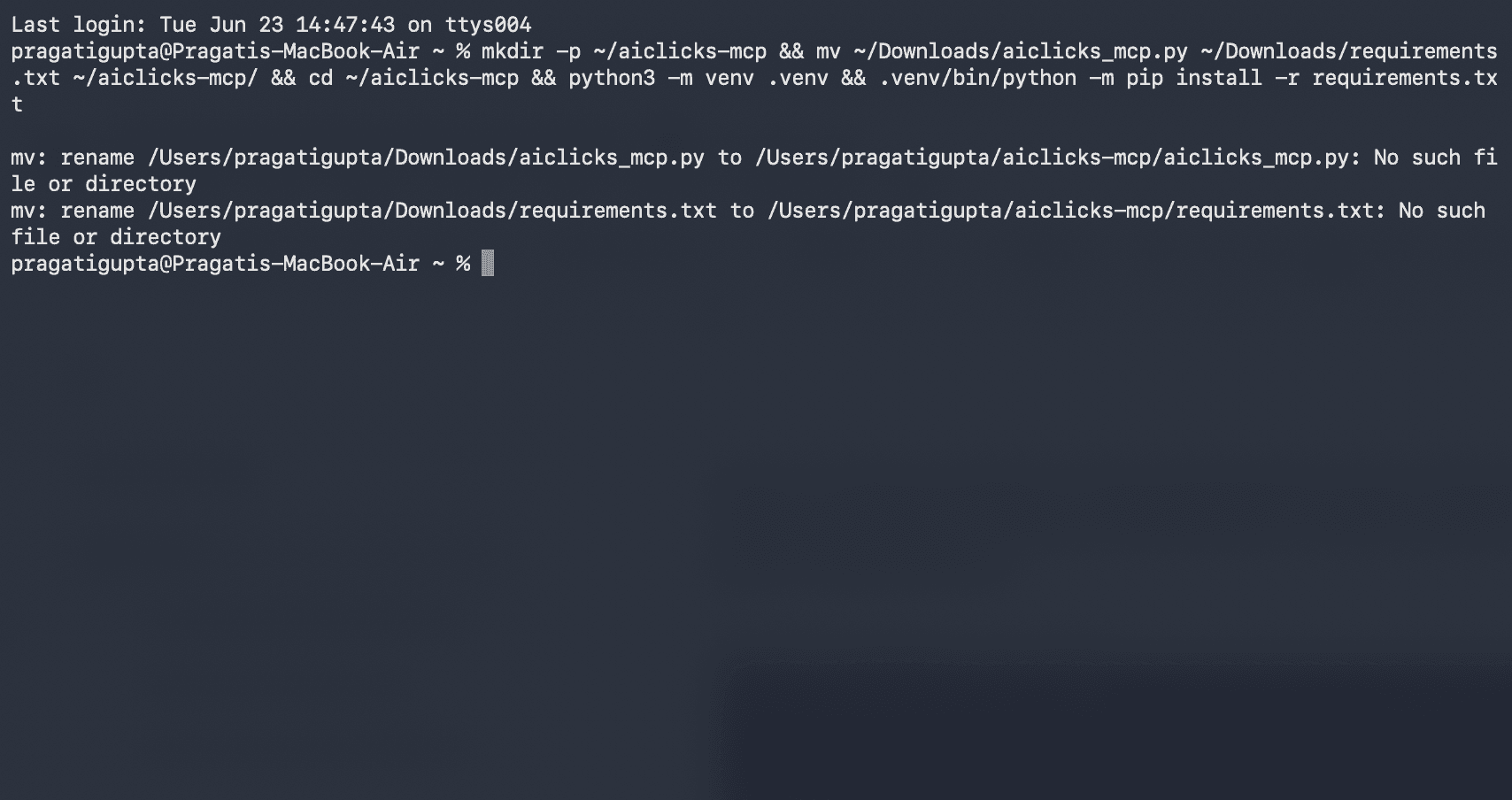
Step 3: Add your API key. Replace ak_live_your_key with your real key, then paste this line and press Enter:
echo '{"mcpServers":{"aiclicks":{"command":"'$HOME'/aiclicks-mcp/.venv/bin/python","args":["'$HOME'/aiclicks-mcp/aiclicks_mcp.py"],"env":{"AICLICKS_API_KEY":"ak_live_your_key"}}}}' > ~/Library/Application\ Support/Claude/claude_desktop_config.json
Step 4: Restart Claude Desktop. Quit it fully with Cmd + Q, then open it again.
Step 5: Test it. In Claude, type: "Validate my AIclicks key and list my domains." If it lists your domains, you're connected.
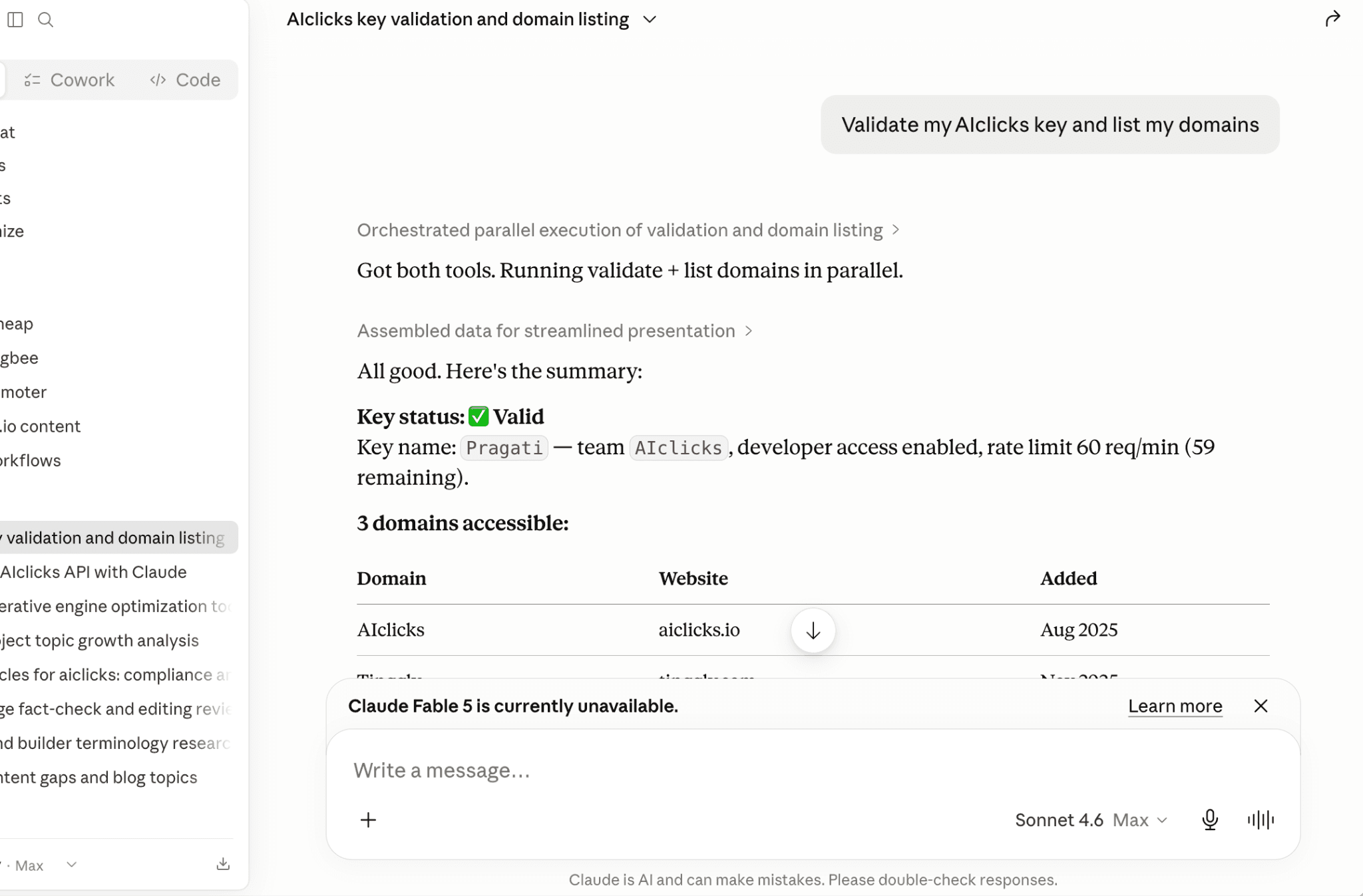
Windows setup
The steps are the same idea as the Mac ones, but the commands and file locations are different. Use PowerShell (not the old Command Prompt).
Step 1: Open PowerShell. Click Start, type PowerShell, press Enter.
Step 2: Install it. Copy these lines, paste them into PowerShell, press Enter. They move the files into place and install what they need (takes about a minute):
mkdir "$env:USERPROFILE\aiclicks-mcp" -Force
Move-Item "$env:USERPROFILE\Downloads\aiclicks_mcp.py","$env:USERPROFILE\Downloads\requirements.txt" "$env:USERPROFILE\aiclicks-mcp"
cd "$env:USERPROFILE\aiclicks-mcp"
python -m venv .venv
.\.venv\Scripts\python.exe -m pip install -r requirements.txt
Step 3: Add your API key: This block fills in all the file paths for you automatically, so the only thing you change is the key. Replace ak_live_your_key with your real key, then paste the whole block into PowerShell and press Enter:
$py = "$env:USERPROFILE\aiclicks-mcp\.venv\Scripts\python.exe"
$script = "$env:USERPROFILE\aiclicks-mcp\aiclicks_mcp.py"
$config = @{ mcpServers = @{ aiclicks = @{ command = $py; args = @($script); env = @{ AICLICKS_API_KEY = "ak_live_your_key" } } } } | ConvertTo-Json -Depth 6
New-Item -ItemType Directory -Force "$env:APPDATA\Claude" | Out-Null
[System.IO.File]::WriteAllText("$env:APPDATA\Claude\claude_desktop_config.json", $config)
Step 4: Restart Claude Desktop: Right-click the Claude icon in the system tray (near the clock), choose Exit, then open the app again. Closing the window isn't enough.
5. Test it: In Claude, type: "Validate my AIclicks key and list my domains." If it lists your domains, you're connected.
Already using other Claude connectors?
The "add your API key" step above writes a fresh settings file, which would replace any connectors you already have. If you already use others, don't run that step. Instead, open the settings file and add just the aiclicks block inside the existing mcpServers section.
Mac: ~/Library/Application Support/Claude/claude_desktop_config.json
Windows: %APPDATA%\Claude\claude_desktop_config.json
The block to add (use your real key, and on Windows use doubled backslashes in the paths, e.g. C:\\Users\\you\\aiclicks-mcp\\...):
"aiclicks": {
"command": "/full/path/to/.venv/bin/python",
"args": ["/full/path/to/aiclicks_mcp.py"],
"env": { "AICLICKS_API_KEY": "ak_live_your_key" }
}
Troubleshooting
"MCP aiclicks: Server disconnected" Claude found the connector but couldn't start it. Almost always the install didn't finish or a file path is wrong. Test the connector directly:
Mac: cd ~/aiclicks-mcp && .venv/bin/python aiclicks_mcp.py --help
Windows: cd "$env:USERPROFILE\aiclicks-mcp"; .\.venv\Scripts\python.exe aiclicks_mcp.py --help
You should see a short description and a list of eight aiclicks_ tools. If you instead see an error, match it below.
ModuleNotFoundError: No module named 'mcp' (or httpx) The install didn't complete. Re-run the install line from your setup section.
can't open file ... No such file or directory The two files never made it into the aiclicks-mcp folder. Check they're in your Downloads folder, then re-run the install step.
python / python3 not found Python isn't installed (or not on PATH). Install it from python.org (tick "Add Python to PATH" on Windows), then start over.
It connects, but a question returns an error about the key (401 or 403) The key is wrong, revoked, or Developer Access is off for your team. Create a fresh key in Settings → Developers and confirm you're on a Business or Enterprise plan.
A domain you expect is missing Ask Claude to "validate my AIclicks key" and check which domains the key is scoped to.
Five ways to use the AIclicks API
You've got a key and data coming out of it. Here's where that data earns its place in your week, from a simple reporting pull to the endpoint that tells you what to publish next.
1. Get your AI visibility out of the dashboard
Right now your visibility, citations, and mentions live inside AIclicks. Your ad spend sits in one place, your organic numbers in another, your revenue in a third.
The API lets you pull the four time series into the same Looker, Metabase, or Google Sheet as the rest of your marketing data, so AI search shows up in the weekly view you already read instead of a tab you have to remember to open.
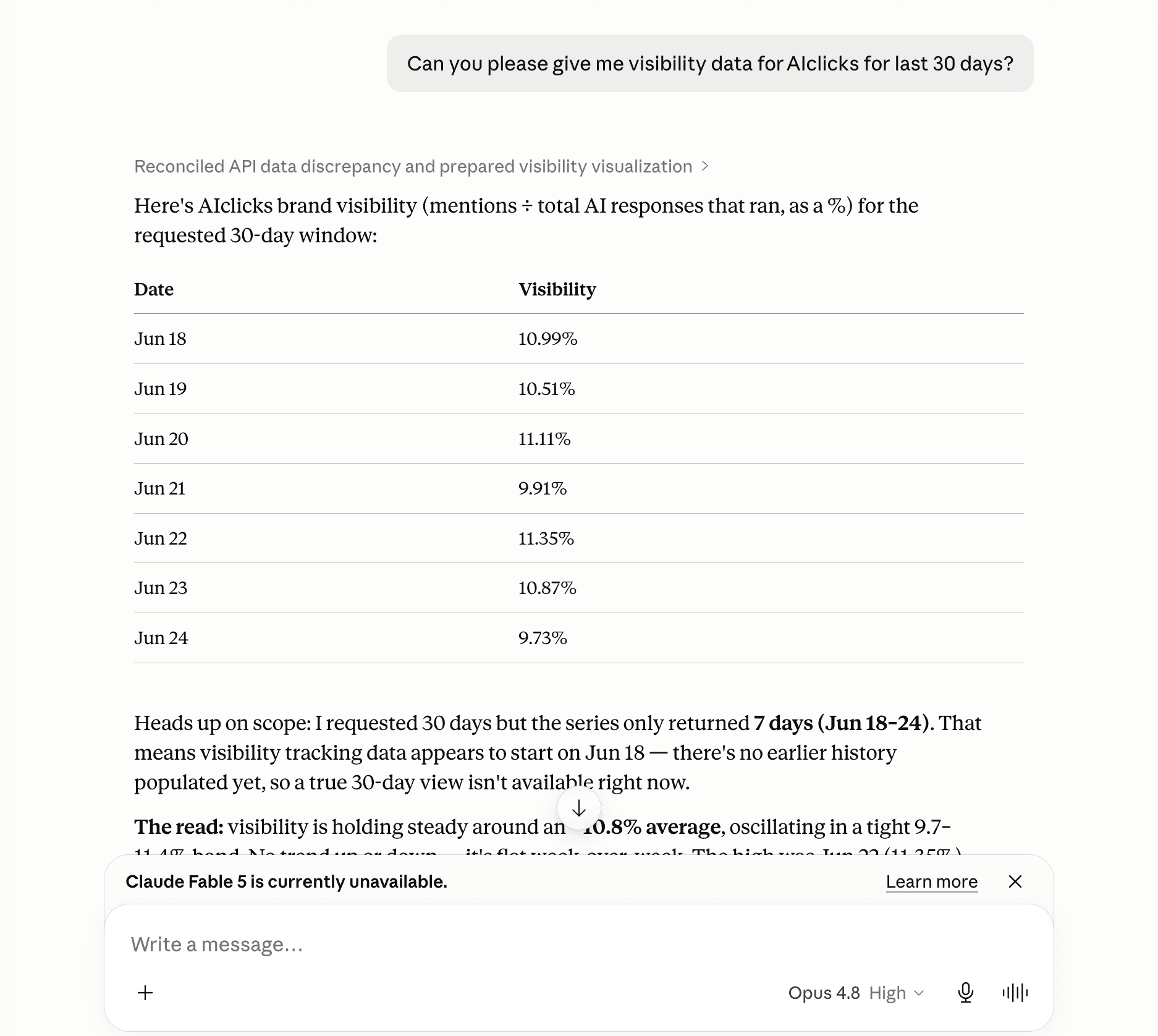
Pull them on a schedule and you have a live feed.
2. Turn fan-out queries into a content roadmap
This is the endpoint to start with.
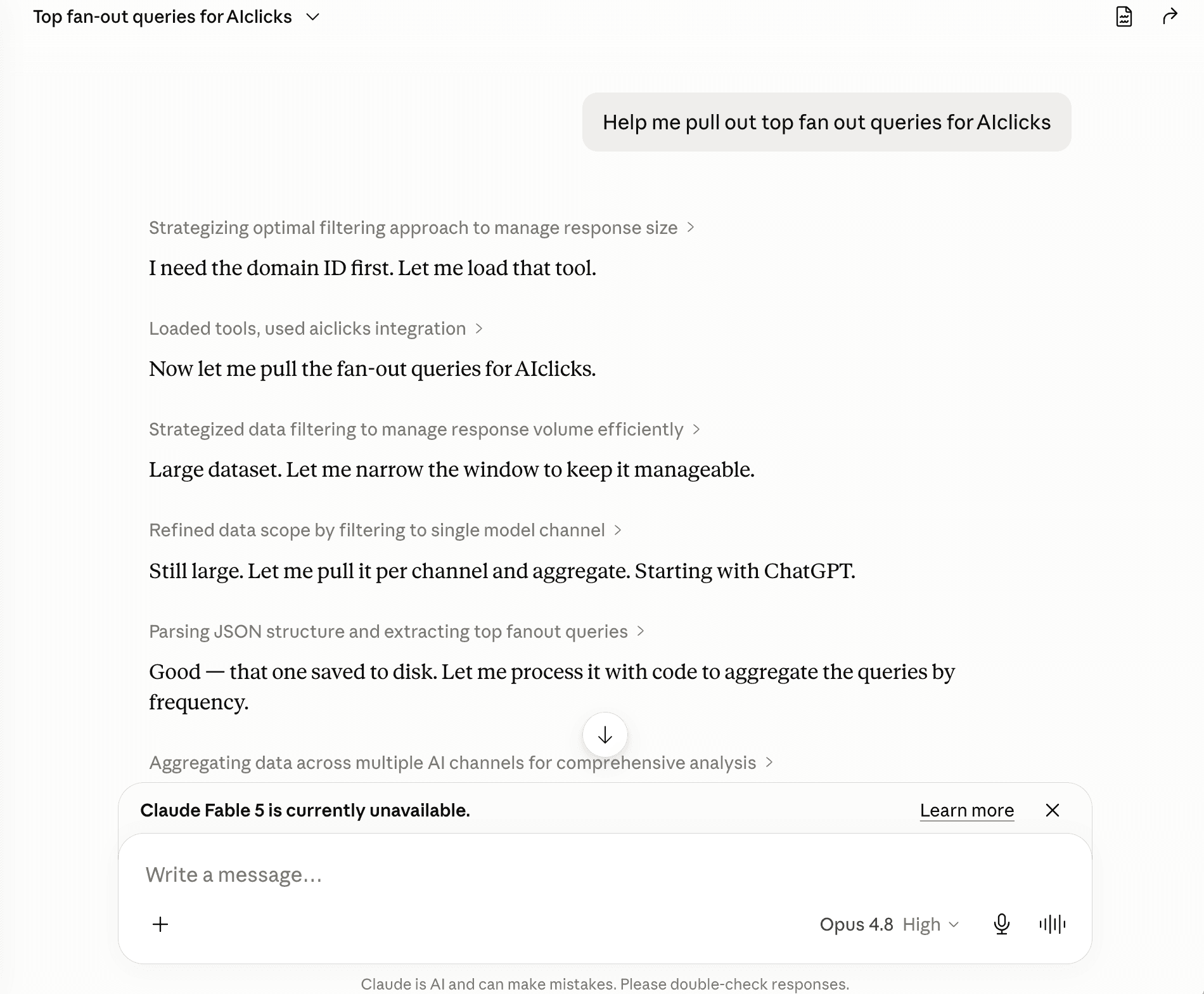
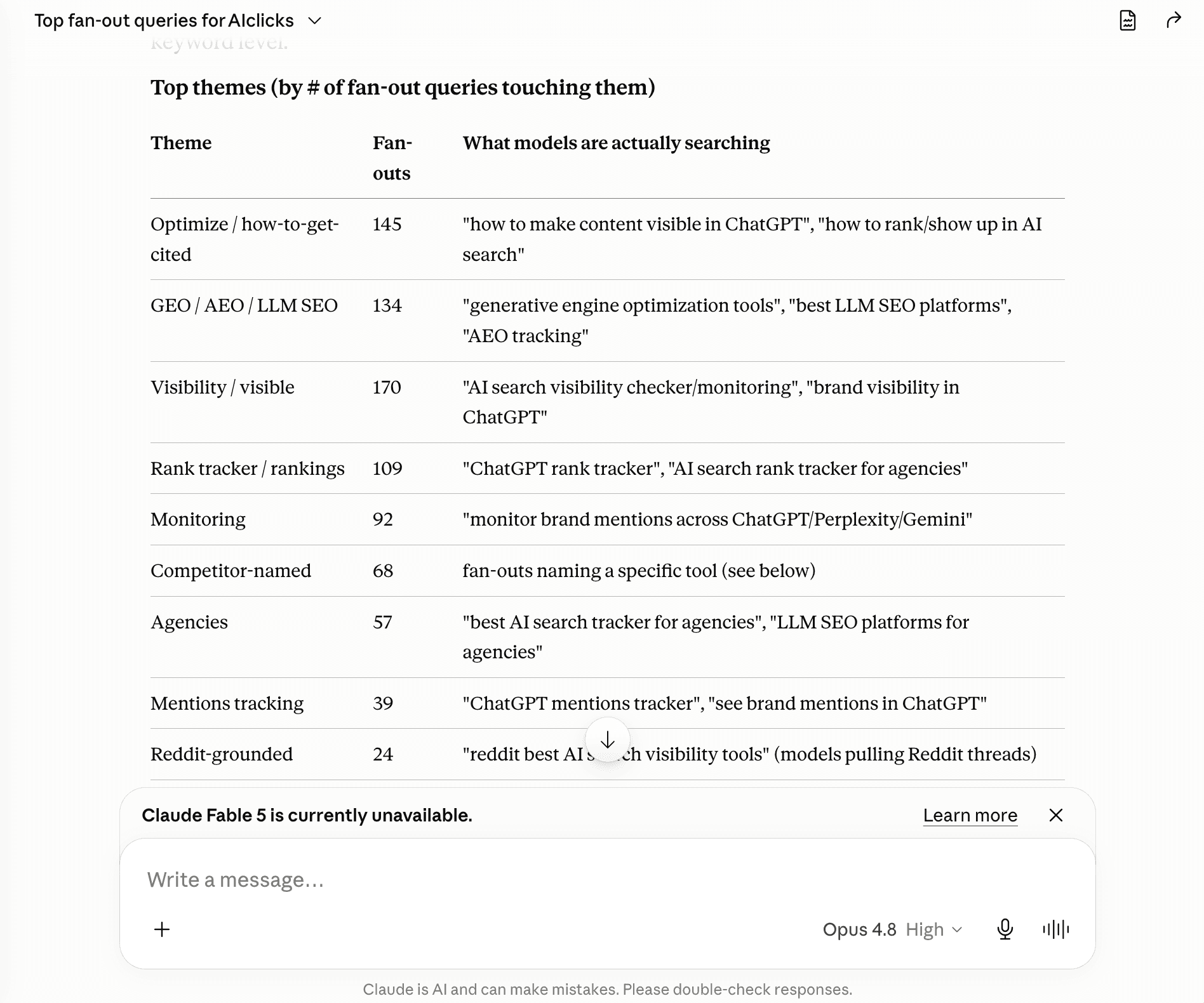
When an LLM answers one of your tracked prompts, it runs its own background searches to ground the answer. /fanout-queries returns those real searches, grouped under the prompt that triggered them and attributed to the model that ran them.
That list is the closest signal there is to "what should I write to get cited", because it's what the models are already looking for on your topics.
Pull 90 days, flatten the result, and count how often each query repeats. The ones at the top are your next briefs. Filter by model and you can see what ChatGPT is searching for that Perplexity isn't.
Do this: pull fan-out queries for your top domain, rank them by frequency, and hand the top 20 to whoever writes your briefs.
Here’s a glimpse:
Pretty simple, isn’t it?
3. Join it against your SEO stack
AIclicks tells you where AI mentions and cites you. Your rank tracker tells you where you sit in classic search.
Put the two side by side with the API and the gaps surface on their own: prompts where competitors get cited and you don't, topics where you rank on Google but stay absent from AI answers. Learn more about how to get cited by AI.
Each gap is a specific page to write or a specific site to pitch.
4. Build reporting that runs itself
If you export CSVs by hand every month for a client deck or an exec update, the time-series endpoints replace that work.
Point a script or an automation flow at the visibility and citations series, format it once, and the report rebuilds itself on whatever schedule you set.
Because the API is read-only, a scheduled job can only ever report, never touch your setup, which is exactly the behavior you want from something running unattended.
If you run four or more clients, this replaces a morning of copy-paste.
5. Watch every brand from one board
For agencies and multi-brand teams, loop over /domains, pull the same metrics for each, and you have one visibility board across every client without opening a workspace per account.
One glance tells you who climbed and who slipped this week, and where to spend your outreach and mention effort next.
Before you build, a few things
Worth knowing before you wire it in:
It's read-only. You can read every metric, but you can't add prompts or change settings through it. That still happens in the app.
Most endpoints cache for about an hour. A change you make in the dashboard shows up after the cache clears, not the instant you make it.
The default rate limit is 60 requests a minute per key. Plenty for reporting. Batch your calls if you're looping over a lot of domains.
A key only sees the domains it's scoped to. Check /validate if a domain you expect is missing.
Single days bounce. Read the 30 and 90-day shape, not any one date.
Turn it on
On Business or Enterprise? Open Settings → Developers, create a key, and the full reference is at docs.aiclicks.io/api.
The /validate and /domains calls take under a minute and hand you everything you need for your first real request.
Not on those plans yet? API access ships with Business. If you're already pulling AI visibility into reports by hand, it pays for itself in the time you stop spending on exports.
That's the AIclicks API. Go build something with it.
Got a feature you want next? Send it to our feature request board. We read every one.
New to AIclicks? Start your 3-day free trial.
Our Content:

15 Best AEO (Answer Engine Optimization) Tools to Track Your Brand in AI Search (2026)
Introducing AIclicks API (June 2026)

How to Use Reddit for AI Citations in 2026

How to Rank in AI Overviews (2026): Top 10 Strategies
Ads Intelligence, State-Level Tracking, and More (June 2026)
14 Best Generative Engine Optimization (GEO) Tools to Try in 2026
Any questions left?
Book a call here: